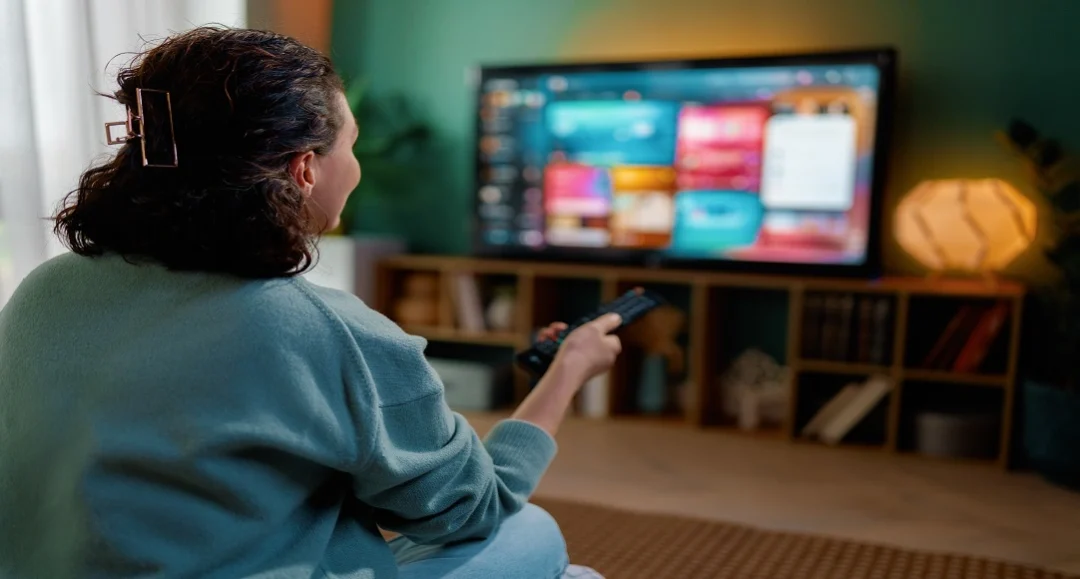
Few things are more frustrating than getting comfortable to watch a movie or show, then reading an error message on your TV screen. There is no need to worry for those of you who currently have the Hulu error code P-DEV320 showing on your Firestick or Fire TV Stick. This error code in particular signals a lack of communication between your device and Hulu’s primary data servers. While the app is attempting to retrieve your video, something in the settings of your network or device is disrupting that handshake.
Before you decide to cancel your subscription, here are four targeted troubleshooting steps that clear out deep-seated cache data and optimize the performance of your Fire TV for better streaming.
1. Perform a Deep Power Cycle and Clear Cache
Restarting the thing isn’t always enough to flush out corrupted temporary files associated with playback errors. Clear the app cache and Data and release some hardware.
How to do it:
- Clear Data: Go to Settings > Applications> Manage Installed Applications > Hulu. Choose to Clear Cache first, and then select Clear Data. Note: This will sign you out of the app.
- Turn off the Device: Disconnect your Fire TV Stick from the HDMI port and the electric outlet. Also, disconnect your modem and router.
- Wait: Keep everything unplugged for a minimum of 60 seconds. This makes the device dump its volatile memory, or RAM.
- Reconnect: First, plug your internet equipment back in and wait for it to come online. Then, plug back in your Fire TV Stick.
2. Optimize Network for Any Time Interrogation
Streaming live TV or HD content tor two way communication between your client (Fire Tv Stick) and server (Hulu). In telecommunications, querying of the status information and location time frequency to ensure service continuity is supported by a procedure known as Any Time Interrogation.
But beyond the jargon, there’s a principle at work here that matters for your own streaming: Hulu is always “interrogating” your network to know if it’s solid enough to continue playing back the stream. The check fails if your Wi-Fi has high jitter or packet loss, and you see the P-DEV320 error message.
The Fix:
- Switch Frequencies: If you are on a 2.4GHz Wi-Fi band, you are prone to interference from microwaves and Bluetooth devices. Switch your Fire TV Stick to the 5GHz band.
- Check Signal Strength: Go to Settings > Network, highlight your Wi-Fi network, and press the Play/Pause button. Ensure signal strength is “Very Good.”
3. Disable “Match Original Frame Rate.”
Amazon Fire TV devices have a feature that attempts to sync the refresh rate of the display with the original frame rate of the content. That’s great for video quality, not so much if it means your TV constantly changes between display modes. Hulu gets this handshake wrong a lot of the time, leading to an app timeout message.
How to disable it:
- Go to Settings > Display & Sounds.
- Select Display.
- Scroll down to Match Original Frame Rate and turn it OFF.
4. Reset HDMI CEC and Update Firmware
The P-DEV320 error message may be caused by HDCP (High-bandwidth Digital Content Protection) handshake failure. This is your TV making sure you’re not pirating content. So if the settings for HDMI-CEC are glitched, this fails.
The Fix:
- Update Fire TV: Go to Settings > My Fire TV > About > Check for Updates. Install any pending updates to ensure compatibility.
- Toggle CEC: Go to Settings > Display & Sounds > HDMI CEC Device Control. Turn this setting OFF, restart your Fire TV Stick, and then turn it back ON.
Comparing Connection Performance
If you keep having playback issues, it’s probably the stability of your connection type. Wi-Fi has built-in risks of data degradation that hardwores don’t.
The table below will show you how to resolve P-DEV320 by switching to Ethernet/5GHz Wi-Fi:
| Connection Type | Packet Loss Risk | Latency (Ping) | Interference Risk | Recommendation |
| Ethernet (Wired) | Near 0% | Very Low (<3ms) | None | Best for eliminating errors. |
| Wi-Fi 5GHz | Low | Low (3-10ms) | Low | Good if the router is close. |
| Wi-Fi 2.4GHz | Moderate/High | High (>20ms) | High | Avoid for HD streaming. |
Conclusion
The P-DEV320 code is normally a result of a network blip or settings issue, but it can be completely fixed with workarounds rather than throwing out the device. By emptying your cache and optimizing your wi-fi signal for server checks, you can fix the connection issue. If you’re still having issues, you might want to purchase a basic Ethernet adapter for your Fire TV Stick to avoid Wi-Fi problems altogether.
FAQs
Why Does P-DEV320 Only Occur on Hulu and Not Netflix?
Hulu’s app is frequently more fickle to momentary bandwidth drops or packet loss than other services, which may buffer more aggressively to cover up network hiccups.
Does the error come from using a VPN?
Yes. Hulu is one of the few shows (outside Netflix) that actively block most anonymous proxies and VPNs. If the app recognizes an IP address that belongs to a VPN, it will deny service and generate P-DEV320.
Will I need a new Fire TV Stick to remedy this?
Probably not, but older models (1st and 2nd Gen Firesticks) have slower processors and less powerful Wi-Fi antennas, which may fail to function with the heavy demands of modern apps.
How can I tell if Hulu servers are down?
Visit a site like Downdetector. It’s Hulu’s fault; be patient. Do you get a flood of user reports that can only mean one thing: Something is wrong on Hulu’s end.
What is the recommended internet speed for Hulu?
Hulu recommends 3.0 Mbps for the streaming library, 8.0 Mbps for live streams and 16.0 Mbps for 4K content. But stability (i.e., low jitter) is often more important than raw speed.
Read More: tech ehla com: Honest Insights, Pros, Cons & Better Alternatives