
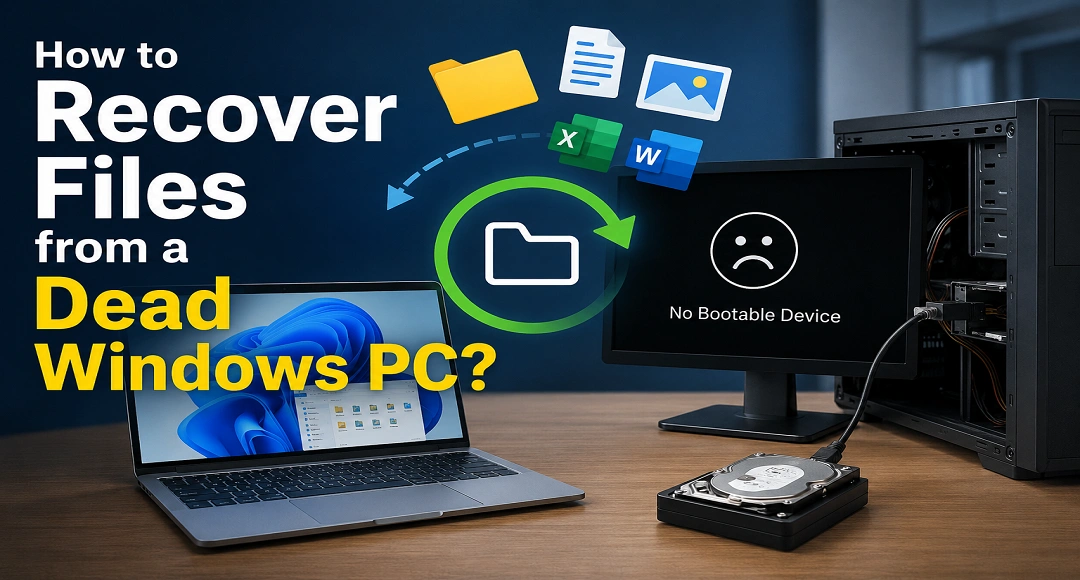
Losing access to your Windows PC can be distressing, especially if it contains valuable data such as your media files, documents, or personal information. There are several reasons, such as a dead or crashed Windows PC, accidental deletion, hardware failure, or OS corruption issues, why your files get deleted. Data loss can be more painful if it is due to a dead or crashed Windows PC, as it completely removes access from your device and everything seems lost forever.
Fortunately, in many cases, your data remains safely stored on the hard drive, or an SSD can be easily restored using data recovery workarounds. In this guide, we’ll explain different methods for how to recover files from a dead or crashed Windows PC safely and effectively.
Why Windows PC is dead or become Unbootable?
A Windows PC may stop working due to a variety of reasons, ranging from corrupted OS files to driver conflicts. Identifying the exact reason can help you determine an adequate free data recovery workaround. Some common reasons include:
- Corrupted Windows Files: Essential Windows system files sometimes become damaged or missing, which in turn prevents the OS from starting or functioning properly.
- Failed or Interrupted Windows Updates: If Windows updates stop unexpectedly due to power loss or errors, it leaves the system unstable or unbootable.
- Hard Drive or SSD Failure: Storage devices can develop hardware faults, making files inaccessible and preventing Windows from loading successfully during startup.
- Virus or Malware Infections: Malicious programs like viruses or malware can corrupt system files, delete important data, or damage Windows components, causing crashes or boot failures.
- Driver Conflicts: Incompatible or outdated hardware drivers may conflict with Windows, causing blue screen errors, crashes, or devices to stop functioning.
- Overheating: Excessive heat from poor ventilation or failing cooling systems can damage hardware, causing sudden shutdowns, crashes, and reduced performance.
Common Signs of a Dead Windows PC
If your Windows computer is dead or unbootable due to any of the aforementioned reasons, you may encounter the following issues:
- Windows gets stuck on the loading screen.
- A black screen appears after powering on.
- Error messages like “Operating System Not Found” appear.
- BIOS cannot detect the storage drive.
- The computer powers on, but Windows never loads.
Understanding these symptoms helps determine whether the issue is software-related or caused by hardware failure.
How do I Recover Data from a Dead or Crashed Windows PC?
Now that you’re familiar with common reasons and symptoms for your dead or crashed Windows PC, it’s time to get your deleted files back. Here are some quick and free data recovery methods that you can try to restore your lost files with ease:
Method 01: Boot Windows into Safe Mode
If Windows is partially functional, Safe Mode may allow you to access your files. All you have to do is:
- Firstly, turn ON your Windows PC.
- Now, force shutdown it during the startup two or three times to enter the Windows Recovery Environment.
- Go to Troubleshoot, then click Advanced Options > Startup Settings.
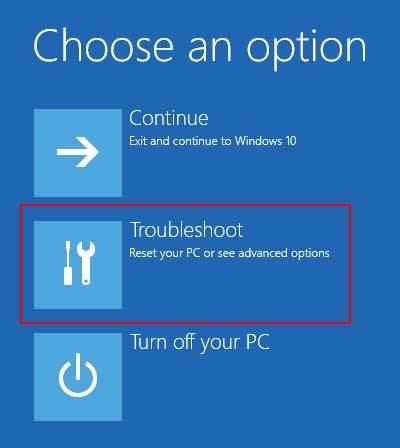
- Restart your PC and tap the F4 or F5 key to enter Safe Mode.
Once your PC enters Safe Mode, you can perform the following actions:
- Copy important documents.
- Transfer photos and videos to different storage media.
- Create a backup of important files and folders
This is one of the simplest methods to restore files when your PC becomes inaccessible or gets corrupted.
Method 02: Recover Files Using a Bootable Windows USB
If your Windows PC fails to start at all, you can boot it using the Windows installation or a bootable recovery USB drive. For this:
Create a bootable Windows USB using Microsoft’s Media Creation Tool.
Now, connect the USB to your affected Windows PC.
Boot from the USB, then select Repair your computer (don’t choose to install Windows).
Launch Command Prompt or File Explorer (if installed).
Select and copy all the files to an external drive.
This method is mainly helpful when your Windows OS is corrupted, but the storage drive remains healthy.
Method 03: Recover Files Using Free Data Recovery Software
If the above DIY workarounds seem complex or fail to recover your files from a dead or crashed Windows PC, it’s time to use free data recovery software like Stellar Data Recovery Free are especially designed to restore your files deleted due to a crashed device, accidental deletion, system formatting, hard drive corruption, and many other reasons. You can use this tool to restore deleted files from various storage media, including hard drives, SSDs, memory cards, and many other internal or external storage media.
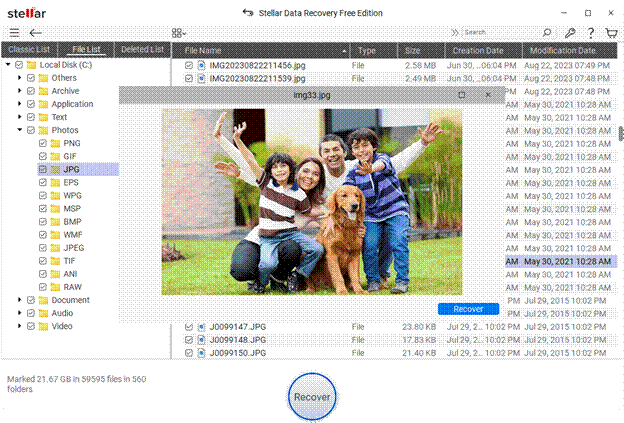
The Stellar Data Recovery Free software can help you restore deleted photos, videos, documents, and other types of files of various file formats. It also allows you to preview the recoverable files before saving them on your PC. The free version of this software lets you restore deleted files up to 1 GB for free. To recover your lost files of larger size, you can upgrade and use the premium versions.
Here’s how to recover files from a dead or crashed Windows PC using this free data recovery software:
Step 1: Download and install the Stellar Data Recovery Free software on a different working Windows PC. Also, remove the hard drive or SSD from your crashed PC and connect it to that PC using a SATA-to-USB adapter.
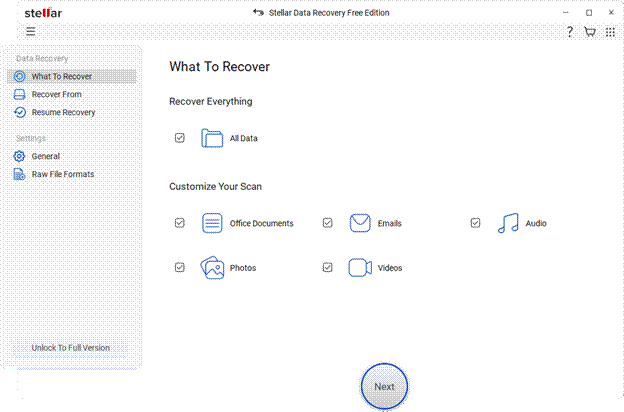
Step 2: Launch the software and from the homepage, select the type of file you want to restore (or tap All Data) and click Next to continue.
Step 3: Now, choose the hard drive or SSD from your crashed Windows PC. Ensure you select the correct partition before starting the scan. Click Scan to begin the scanning process.
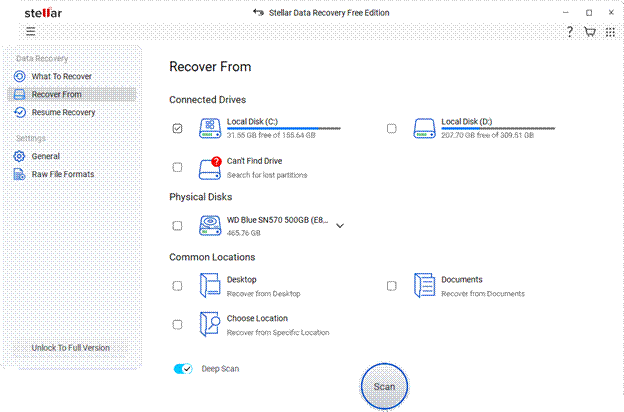
Note: If your files are not found, you can use the Deep Scan option to search more thoroughly for lost or deleted data.
Step 4: Once the scan is complete, preview the recoverable files and choose the ones you want to restore. Click Recover to save the recovered data to a different drive, such as an external hard drive or another internal drive.
Conclusion
A dead or crashed Windows PC can be alarming, but it doesn’t necessarily mean your files are gone forever. If you’ve created backups of your data, then use these backups to restore lost or deleted files. In case of no backups, try DIY workarounds such as safe booting your Windows PC or using a bootable USB drive. If these manual methods fail to restore your files, free data recovery software such as Stellar Data Recovery Free may be able to retrieve data from physically damaged drives.
The most important step is to avoid actions that could overwrite your existing data, such as reinstalling Windows or formatting the drive before attempting recovery. Acting quickly, using the right tools, and following safe recovery practices greatly improve your chances of success.
Read More: HCA layoffs: 2026 Job Cuts Follow Q2 Earnings Hit