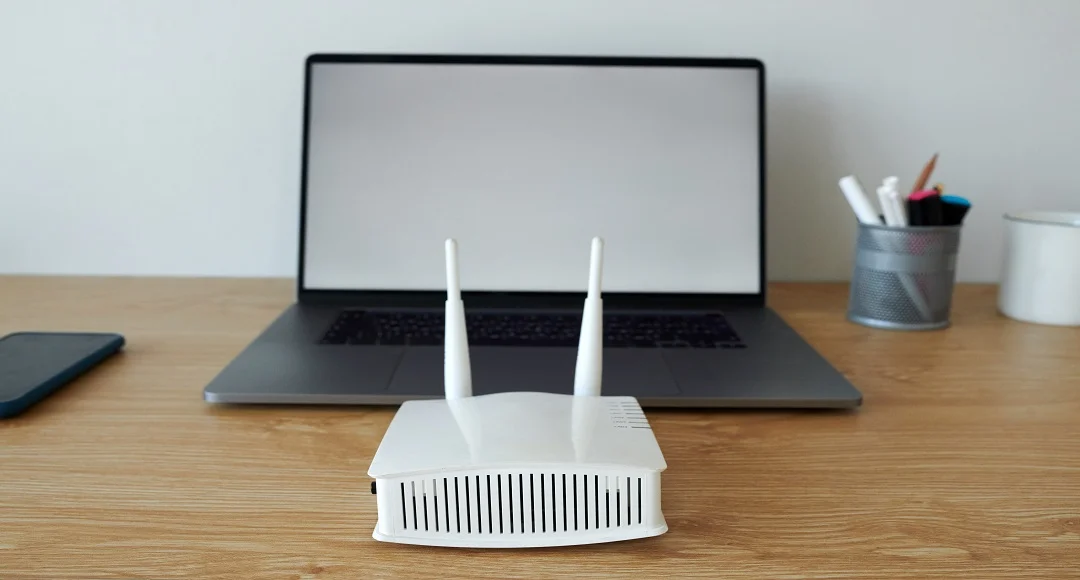
How To Change WiFi Name? Like “TP-Link _ 4F2A” or “Huawei-8821”? Believe me, you’re not alone. Most people install a router, the internet goes on and they spend months but not years with the same default name. Then one day it becomes difficult to find your network in the list of ten Wi-Fi networks in the neighborhood, or a guest asks “Brother, which is your Wi-Fi? And you don’t believe in yourself.
In this guide, we will learn in very simple language how to change the WiFi name, whether you have TP-Link, Huawei, D-Link, PTCL or any other router. At the same time, you will know how to change the Wi-Fi name and password at the same time, what mistakes to avoid, and what things to take care of when having a new name.
This process is usually completed in five to ten minutes. No need to call a technician or spend money. All you need is a laptop or mobile phone.
Table of Contents
- What Is a WiFi Name (SSID)?
- Why Should You Change Your WiFi Name?
- Before You Start: What You Need
- How to Find Your Router IP Address
- Default Router Login Details
- How to Change WiFi Name on Any Router (General Steps)
- How to Change WiFi Name on TP-Link Router
- How to Change WiFi Name on Huawei Router
- How to Change WiFi Name on D-Link Router
- How to Change WiFi Name on Netgear, ZTE, Tenda and Others
- How to Change WiFi Name on PTCL and Other ISP Routers
- How to Change WiFi Name from Your Phone App
- How to Change WiFi Name and Password Together
- 2.4 GHz vs 5 GHz: Should Names Be Different?
- Good WiFi Name Ideas and Rules
- What Happens After You Change the Name?
- Common Problems and Easy Fixes
- WiFi Security Tips
- Frequently Asked Questions (FAQs)
- Final Thoughts
What Is a WiFi Name (SSID)?
The name of Wi-Fi is called SSID in technical language, i.e. Service Set Identifier. In simple words, it is the name that appears in the Wi-Fi list of your mobile, laptop or TV. When you turn on Wi-Fi in the phone, the names of all nearby networks appear in the same way.
The router comes with a default name when leaving the factory, which usually consists of the company name and some numbers. This name is also written on the sticker on the back of the router. The good thing is that you can change this name whenever you want, and it doesn’t have any negative impact on your internet speed or connection.
Let’s understand another thing. Wi-Fi name and Wi-Fi password are two different things. The name is only for identification, while the password protects your network. Both are turned on the same page, so we’ll talk about that next.
Why Should You Change Your WiFi Name?
You must be wondering what is the need to change the name when the Internet is running? There are several solid reasons for this.
1. To easily identify your network.
If you live in an apartment or a densely populated area, there are many networks with the same default names. Having your own unique name eliminates the possibility of connecting to the wrong network.
2. For the sake of security
By default, hackers know which router you’re using. The weaknesses of each model are well known. Changing the name hides this information, although it is not a complete protection but an additional layer.
3. To erase the memories of an old resident or tenant
If you’ve bought a new home or It is advisable to change the old name and password.
4. Personal taste and style
Some people like to have Wi-Fi in the name of their family, some have funny names. After all, it’s your network.
5. It’s easy for guests
When a guest comes, all you have to do is say, “Choose a network with the same name,” and it’s over.
Before You Start: What You Need
There are a few things to do before you start. The entire process will be completed without any hindrance.
| Requirement | Why It Is Needed |
|---|---|
| Phone, laptop or PC | Router settings page kholne ke liye |
| WiFi or LAN cable connection | Router se connected hona zaroori hai |
| Router IP address | Login page tak pohanchne ke liye |
| Router username and password | Settings mein dakhil hone ke liye |
| Pen and paper or notes app | Naya naam aur password likh kar rakhne ke liye |
An important tip: if possible, do this by connecting the laptop or computer to the router with a LAN cable. The reason is that as soon as you save the Wi-Fi name change, your phone or laptop may be disconnected from the wireless network and the settings page may be closed. Connecting to the cable is not a problem. However, this is also done from the mobile, only to be reconnected later with a new name.
How to Find Your Router IP Address
To open the router’s settings, you need its IP address. The address of most routers is 192.168.1.1 or 192.168.0.1. The easiest way is to turn the router upside down and look at the sticker at the bottom, where the IP, username and password are often written.
If the sticker has been erased, try these methods according to the device.
Windows Computer:
Open the Command Prompt by typing “cmd” in the Start menu. Type ipconfig and press Enter. As a result, the number written in front of the “Default Gateway” is your router’s IP.
Mac
Open Network in System Settings, select your connection, go to Details and look for the number written in front of “Router” in the TCP / IP section.
Android:
Open Wi-Fi in Settings, press the settings icon next to the connected network. There, IP is written in front of “Gateway” or “Router.” Some phones have to go to Advanced.
iPhone:
Open Wi-Fi in Settings, tap on the “i” sign next to your network. Scroll down and the IP will appear in front of the “Router.”
| Device | Where to Find IP |
|---|---|
| Windows | Command Prompt, ipconfig, Default Gateway |
| Mac | Network Settings, TCP/IP, Router |
| Android | WiFi Settings, Network Details, Gateway |
| iPhone | WiFi Settings, Info icon, Router |
| Router Sticker | Bottom or back of the router |
When you find an IP address, write it in the browser’s address bar, not in the search bar. This is a common mistake that people make when searching on Google.
Default Router Login Details
Now comes the question. their logs. If you never change the password, the router’s default username and password will be used. Below is a list of some popular brands.
| Router Brand | Common IP Address | Common Username | Common Password |
|---|---|---|---|
| TP-Link | 192.168.0.1 or 192.168.1.1 | admin | admin |
| Huawei | 192.168.100.1 or 192.168.1.1 | admin or root | admin |
| D-Link | 192.168.0.1 | admin | blank or admin |
| Netgear | 192.168.1.1 | admin | password |
| ZTE | 192.168.1.1 | admin | admin |
| Tenda | 192.168.0.1 | admin | admin |
| Asus | 192.168.1.1 | admin | admin |
| Linksys | 192.168.1.1 | blank or admin | admin |
An important clarification: This information is generally accurate but may vary for each model and each Internet company (ISP). Sometimes, the Internet service provider sets a password of its own. In such a case, first see the sticker of the router, and if nothing is found there, then contact the helpline of your internet company.
How to Change WiFi Name on Any Router (General Steps)
Now let’s get to the actual work. Although the interface of each brand is a little different, the basic principles are the same in all. If you understand these six steps, then the answer to how to change my WiFi name will be found on each router.
Step 1: Connect to the Router
Connect your phone or laptop to the same router’s Wi-Fi or LAN cable. Settings connected to another network will not open.
Step 2: Open the browser.
Chrome, Firefox, Edge, or Safari.
Step 3: Enter the IP address.
In the address bar, type the router’s IP, such as 192.168.1.1, and press Enter.
Step 4: Log in.
Enter username and password. If a message like “Your connection is not private” appears, do not panic. This comes because the router has its own local page, click Advanced and move on.
Step 5: Find the settings.
Find one of these names in the menu: Wireless, WiFi, WLAN, Wireless Settings, Basic Settings or Network.
Step 6: Change the SSID.
Enter the new name by deleting the old name in the “SSID” or “Network Name” or “WiFi Name” box. Then click on Save, Apply, or Submit. After a few seconds, the router will apply the new settings.
Just finished the job. Now look at the Wi-Fi list of your phone, the new name will be visible.
How to Change WiFi Name on TP-Link Router
TP-Link is one of the most widely used routers around the world, including Pakistan. The method is very simple.
- Open 192.168.0.1 or tplinkwifi.net in the browser.
- Enter username and password. In the new models, the password itself has to be created for the first time.
- Click Wireless on the left side of the old interface, then select Wireless Settings.
- The new interface has a Basic tab at the top and then the option of Wireless.
- Enter the new name in the Wireless Network Name (SSID) field.
- Let’s click Save below.
If your router is dual-band, there will be separate boxes for both 2.4 GHz and 5GHz. Do not forget to change the name in both, otherwise an old and a new name will appear and there will be confusion.
How to Change WiFi Name on Huawei Router
Huawei routers are very common, especially with PTCL and other fiber connections.
- Type 192.168.100.1 or 192.168.1.1 in the browser.
- Enter username and password. Often the default is a password with an admin and a sticker.
- Go to WLAN or Wi-Fi Settings.
- The SSID name box will be found in 2.4 G Basic Network Settings.
- Get a new name there.
- If there is a 5G option, do the same in 5G Basic Network Settings.
- Click on Apply or Save.
In some Huawei models, an additional code or captcha is asked for due to security on the settings page. Write the code according to the picture on the page.
How to Change WiFi Name on D-Link Router
- Open 192.168.0.1 or dlinkrouter.local in the browser.
- Write an admin in the username. The password box is often empty or the same as the admin.
- Go to the Settings tab and select Wireless Settings.
- Click on Manual Wireless Network Setup.
- Enter a new name for the wireless network.
- Click on Save Settings.
The new D-Link models have the option of Settings at the top and Wireless below it. The method remains the same, only the location of the button is changed.
How to Change WiFi Name on Netgear, ZTE, Tenda and Others
Now we wrap up the rest of the popular brands in one place.
| Router Brand | Where to Go | What to Change |
|---|---|---|
| Netgear | routerlogin.net, then Basic, then Wireless | Name (SSID) |
| ZTE | 192.168.1.1, then Network, then WLAN Settings | SSID Name |
| Tenda | 192.168.0.1, then WiFi Settings | WiFi Name |
| Asus | router.asus.com, then Wireless, then General | SSID |
| Linksys | 192.168.1.1, then Wireless, then Basic Wireless Settings | Network Name (SSID) |
| Xiaomi | 192.168.31.1, then Wi-Fi Settings | Wi-Fi Name |
| Mercusys | mwlogin.net, then Basic, then Wireless | Network Name |
The principle is the same in all of them: log in, go to the wireless section, write a new name in the name box and save. Don’t worry if your model isn’t on this list. Find the word “Wireless,” “WLAN” or “WiFi” in the menu, you will find the path.
How to Change WiFi Name on PTCL and Other ISP Routers
Many people in Pakistan are provided with routers by the internet company (such as PTCL, StormFiber, Nayatel, Wateen, etc.). On such routers, sometimes the company has limited some settings.
The common method:
First of all, on the sticker of your router, see which IP and login is given. Then open the settings according to the steps described above. Most ISP routers are based on Huawei, ZTE or TP-Link, so the interface will be similar to them.
If you’re not logged in:
Some companies have their own passwords. In this case, contact the company’s helpline or mobile app. Often they give the facility to change the Wi-Fi name and password through the app itself.
Remember:
Think twice before factory resetting the ISP router. Resetting can also erase the internet configuration and then have to be set up again by the company’s technician.
How to Change WiFi Name from Your Phone App
Nowadays, many new routers come with a mobile app, allowing you to change the name without the hassle of a browser and IP.
| Brand | App Name |
|---|---|
| TP-Link | Tether or TP-Link Deco |
| Netgear | Nighthawk or Orbi |
| Asus | ASUS Router |
| Tenda | Tenda WiFi |
| Xiaomi | Mi Wi-Fi |
| Mercusys | MERCUSYS |
Method:
- Install the app on your phone.
- Open the app and connect to the router’s Wi-Fi.
- Open the Wi-Fi or wireless network.
- Tap on the Name box and enter a new name.
- Save or Apply.
The advantage of the app is that you can change settings in many models even outside the home, provided remote access is turned on.
How to Change WiFi Name and Password Together
Many people not only ask how to change the WiFi name, but also want to know how to change the WiFi name and password, and it is wise. When creating a new name, the password must be strengthened.
Both are often on the same page.
- Open up the wireless settings.
- Enter a new name in the SSID or Network Name.
- See the Security or Wireless Security section on the same page.
- Select WPA2-PSK or WPA2 / WPA3.
- Enter a new password in the Password, Passphrase, or Pre-Shared Key box.
- Press Save.
What’s the password supposed to be?
Have at least 12 characters. Include large and small English letters, numbers, and any symbols. Do not keep your name, phone number, date of birth or simple password like “12345678.” A good recipe is to make a long sentence that you remember, such as several words.
| Password Type | Example Style | Strength |
|---|---|---|
| Very weak | 12345678 | Easily cracked |
| Weak | Ahmed2005 | Guessable |
| Good | Mix of letters, numbers, symbols | Strong |
| Best | Long phrase of 4 to 5 random words with numbers | Very strong |
2.4 GHz vs 5 GHz: Should Names Be Different?
If your router is dual-band, the question is whether to name the two bands as one or separate.
Advantages of using the same name:
Your devices automatically choose the best band. The setup is also easy and no need to remember.
Advantages of having a name:
You can decide for yourself which device will run on which band. 2.4 GHz is better for smart bulbs, old gadgets and remote rooms, for example. Because it has more range. While 5GHz is better for laptops, gaming, and video calls Because it’s faster.
| Feature | 2.4 GHz | 5 GHz |
|---|---|---|
| Speed | Slower | Faster |
| Range | Longer | Shorter |
| Wall penetration | Better | Weaker |
| Interference | More | Less |
| Best for | Smart home devices, far rooms | Streaming, gaming, calls |
If you want to have a different name, put _ 2.4 G and _ 5G at the end, it makes identification easier.
Good WiFi Name Ideas and Rules
Naming is apparently fun, but it requires some caution.
What to do:
Keep the name short and easy to remember. Use English letters and numbers. Choose a name that you like and that doesn’t reveal your personal information.
What not to do:
Don’t include your full name, home number, flat number or phone number in the name. Avoid special symbols such as @, #, & and spaces, some older devices don’t understand them. Don’t even have a name with Urdu or emoji because some phones and TVs don’t show it correctly. Name should not be more than 30 characters.
| Name Style | Example | Good or Bad? |
|---|---|---|
| Default | TP-Link_4F2A | Bad, reveals router brand |
| Personal | Ahmed_Khan_House12 | Bad, reveals identity |
| Simple and neat | BlueSky_Home | Good |
| Funny | Pretty Fly for a WiFi | Fun but fine |
| Family style | TheKhanFamily | Okay |
| Tech style | Net_Ninja_5G | Good |
یاد رہے، کوئی بھی دوسروں کو دھوکا دینے والا نام جیسے “Free WiFi” یا کسی دوسری کمپنی کے نام والا نام نہ رکھیں۔ یہ نہ صرف غیر اخلاقی ہے بلکہ لوگوں کو غلط فہمی بھی ہو سکتی ہے۔
What Happens After You Change the Name?
Remember, do not use any deceptive name like “Free WiFi” or any other company name. It’s not only unethical However, people can also be wrong.
TVs and laptops remember the old name and that name no longer exists.
Now what you have to do:
- Now what you have to do:
- Open the Wi-Fi list on each device.
- Find the new name and click on it.
- Enter the password (if it’s new or old).
- Wait for the connection.
Forget the old network:
Some devices preserve the old name and try to connect to it again and again. In such a situation, tap on the old network and select the option of Forget Network.
Don’t forget these tools:
There are some things in the home that we don’t use every day but are connected to Wi-Fi: smart TVs, printers, security cameras, smart plugs, soundbars and gaming consoles. They should all be re-named.
Common Problems and Easy Fixes
Sometimes there are problems when everything is going well. Let’s look at the common problems and their solutions.
| Problem | Possible Reason | Solution |
|---|---|---|
| Router page does not open | Wrong IP or not connected to router | Check IP again and reconnect to the router |
| Wrong username or password | Default changed by ISP or user | Check sticker or call your ISP |
| New name not showing | Phone cache or router has not restarted | Turn WiFi off and on, or restart router |
| Cannot connect after change | Old saved network on device | Forget network and connect again |
| Settings not saving | Browser issue or session expired | Try another browser or log in again |
| Only one band changed | Dual band has separate settings | Change name in both 2.4G and 5G sections |
| Forgot router password | Never noted it down | Factory reset the router |
What if the admin forgets the password?
The router has a small reset hole. Press it with the help of a pin or clip for ten to fifteen seconds until the lights blink. The router will return to its factory settings. But keep in mind, this will remove all of your custom settings. If you have a PPPoE username and password for the Internet, write them down in advance or take them from the ISP, otherwise the Internet will not work after the reset.
What if the Internet slows down after changing the name?
Changing the name does not affect the speed. If the speed seems low, the cause will be something else, such as more devices being connected, the router being in the wrong place, or a problem from the ISP. Turn off the router and turn it on again after 30 seconds.
WiFi Security Tips
Changing the name is a good step, but it is also necessary to take care of some other things for complete safety.
Change admin password:
The Wi-Fi password and the router’s admin panel password are two different things. Many people keep the admin password as the default, which is a big mistake. If someone connects to your network and the admin password is admin, they can change all of your settings.
Use WPA2 or WPA3.
Avoid networks with old WEP or no passwords. If your router supports WPA3, that’s the best choice.
turn off wps.
WPS is a quick way to connect via a button or pin, but it has security vulnerabilities. Shut it down if you don’t need it.
Keep the firmware updated.
Router manufacturers periodically release updates to fix security flaws. Go to Settings or System Tools.
Create a network for guests.
If your router has a guest network option, use it. In this way, guests are not able to reach your original network and connected devices.
Check the connected devices.
Look in the Connected Devices or DHCP Client list in the router’s panel to see who is connected. If you see an unknown device, change the password immediately.
turn off remote access.
If you don’t need to run the router outside your home, turn off Remote Management.
Frequently Asked Questions (FAQs)
Q: How to change wifi name?
A: To change the Wi-Fi name, open the router’s IP address (usually 192.168.1.1 or 192.168.0.1) in the browser, log in, go to Wireless or Wi-Fi Settings, enter the new name in the SSID box and press Save. Re-connect your device with a new name.
Q: How to change name wifi?
A: This question is also the same as above, only the order of words is different. The answer is to go to the router’s settings and change the network name in the wireless section. If you don’t know your IP address or password, look for the sticker on the back of the router.
Q: How to change wifi name and password?
A: Both are changed on the same page. Change the SSID in the Wireless Settings and enter a new password. Choose WPA2 or WPA3 as the security mode and finally save. The password must be strong and at least 12 characters.
Q: How to change name of wifi?
A: If your router is TP-Link, Huawei, D-Link, Netgear or any other, the method is almost the same in all. Open Settings, go to the WLAN or Wireless section, enter a new name and save the change. If there is a dual band, change the name in both bands.
Q: How to change my wifi name?
A: You can also do this on your mobile phone. Connect the phone to the router’s Wi-Fi, write the router’s IP in the browser and follow the steps described above. If your router has an app, the name can be changed even more easily.
Q: Will changing the WiFi name affect internet speed?
A: The name is just identification, it has nothing to do with speed or signal. However, the devices have to be reconnected after the change.
Do I need to restart the router after changing the name?
A: Most routers implement self-setting and do not require a restart. If you don’t see the new name, turn off the router and turn it on again after 30 seconds.
Q: Can I change WiFi name without a password?
A: An admin password is required to access the router’s settings. If they’re forgotten, the router will have to be factory reset, but save your Internet configuration information before that.
Q: Can I use Urdu letters in my WiFi name?
A: Technically, some routers allow it, but many devices don’t. It is best to use English letters and numbers.
Q: How often should I change my WiFi name and password?
A: There is no need to change the name frequently, but it is a good habit to change the password every six to twelve months. If you suspect that an unknown person is on your network, change it immediately.
Final Thoughts
So friends, you have seen how to change WiFi name is not a difficult or technical task. There are actually only four things to remember: Find the router’s IP, log in, go to the wireless settings, enter a new name, and save. After that, simply add a new name to your device.
At the same time, we also learned how to change WiFi name and password on the same page, so whenever you change the name, do not forget to strengthen the password. Changing the admin password, using WPA2 or WPA3, and keeping the firmware updated keeps your network secure enough.
If you haven’t changed your router’s default name yet, take the time to do so today. Five minutes of hard work will make your network safer, more unique, and easier to identify.
If you have benefited from this guide, be sure to share it with your friends and family, and if there is a problem at any stage, write down the model of your router in the comment and ask.
Read More: How to Restart iPhone 13 [100% Working Method]



![How to Restart iPhone 13 [100% Working Method]](https://www.peacequarters.com/wp-content/uploads/2026/10/How-to-Restart-iPhone-13-100-Working-Method-300x180.webp)
![How to Restart iPhone 13 [100% Working Method]](https://www.peacequarters.com/wp-content/uploads/2026/10/How-to-Restart-iPhone-13-100-Working-Method-80x80.webp)