iphone imei check Purchasing a second hand iPhone is almost like taking a gamble. The images are pristine, the seller seems pleasant enough and for a price just low enough to give you heartburn of a good kind. Two weeks later, the phone gets blacklisted by a carrier, or calls for another person’s Apple ID, or is revealed to be a refurbished unit with unknown parts.
The IMEI check on an iPhone before any money changes hands is the one habit that avoids most of these stories. Its pretty literal takes minutes, costs nothing in almost all cases and tells you way more than a shiny screen ever will.
Here is a step-by-step guide for cleaning up everything. Learn 5 different ways to check IMEI on iPhone, what to do with the numbers once you have it, how to know if a device is fake, stolen or carrier locked and what you can do if the results look wrong. Whether you are buying, selling or just want to know what your phone is worth — You will walk away with knowing exactly what to look for!
Table of Contents
- What Is an IMEI Number?
- Why an iPhone IMEI Check Matters
- How Do You Check IMEI on iPhone? 6 Easy Methods
- How to Check IMEI Number on iPhone Without Unlocking It
- How to Run an IMEI Check iPhone Buyers Can Trust
- How to Spot a Fake iPhone Using the IMEI
- How to Check Whether an iPhone Is Stolen or Blacklisted
- How to Check Whether an iPhone Is Locked to a Carrier
- Activation Lock: The Check Everyone Forgets
- Dual SIM and eSIM iPhones: Why You May See Two IMEIs
- IMEI Check Red Flags Every Buyer Should Know
- Can You Change or Hide an IMEI?
- A Simple Pre-Purchase Checklist
- Frequently Asked Questions
- Final Thoughts
What Is an IMEI Number?
Your IMEI number can be expanded to read as an International Mobile Equipment Identity. Think of it like a fingerprint for your phone — its a 15 digit number that identifies one mobile device. It is not meant to share the same one for two phones.
The IMEI also stands for International Mobile Equipment Identity and is a unique identifier which tells carriers about the device on their network. It is used by manufacturers for tracking production and warranty. It is utilized by police and carriers to report stolen as well as blocked lost phones. And you can use it to verify that the iPhone in front of you is actually the model the seller told you it is.
Few helpful pieces of information about the construction of the number:
- The first eight digits make up the Type Allocation Code (TAC). This indicates the vendor and model of the device.
- The next six digits is the serial section assigned by to manufacturer.
- The last digit is a check digit, calculated from the other fourteen according to a well-known formula, so that typing errors can be detected.
You will also listen to the serial number, EID (for eSIM) and MEID. They are not the same thing. It’s also the one that carriers and blacklist databases count on, which is why it steals the limelight in this article. That serial number is still useful, though: It’s accepted by Apple’s own coverage tool.
Why an iPhone IMEI Check Matters
Most people think if a phone turns on and can make calls, it is okay. Unfortunately, that is not how things work. A mobile phone can appear and operate optimally but have a grave illinder that it comfails.
But what can you find out of a proper IMEI check iPhone process?
Whether the device is genuine: Fake iPhones are real, and some can be really convincing even from the original. One of the clearest red flags comes in the form of mismatched or missing identifiers.
If the phone has been marked lost or stolen : Blacklisted — In some cases, a device will have its access to mobile networks blocked even though it was perfectly functional when you took it home.
If in fact it is locked with a carrier: If I ever heard of a locked iPhone it never did work with more than one network. That matters a good deal if you’re traveling / changing providers.
When was it last in warranty: The coverage page from Apple uses your identifiers to display the warranty and support status.
If details are consistent with what you were told. The listing should line up with the model, colour, storage and activation date. If the seller stated “brand new, never opened” and the phone has an extended activation history then you have a lesson learned.
Free to skip the check, a phone that you can’t use, can’t sell, and can’t get your money back on. Doing it costs a few minutes. That is an easy trade.
How Do You Check IMEI on iPhone? 6 Easy Methods
Finding the number can be done by multiple methods. You should use whatever that works easiest for the phone in your hand. Any time you are inspecting a phone that is not yours, perform at least 2 methods and ensure both agree.
Method 1: Dial *#06# (Fastest Way)
This is the quickest answer to how do you check IMEI on iPhone.
- Open the Phone app.
- Tap Keypad.
- Type *#06#.
- The IMEI appears on screen immediately. You do not even need to press call.
On dual SIM iPhones you will see more than one number. This is normal, and we explain it in a later section. Take a screenshot or write the number down, because you will use it again.
This method works well because it reads the number from the phone’s own software and hardware, not from a sticker that someone could swap.
Method 2: Check in Settings
This is the method most people think of when they search how to check iPhone IMEI check steps.
- Open Settings.
- Tap General.
- Tap About.
- Scroll down until you see IMEI. On many models you will also see the serial number and, on newer devices, the Carrier Lock line.
Tip: Pressing and holding the IMEI number lets you copy it. That makes it easy to paste into a checking tool without typos.
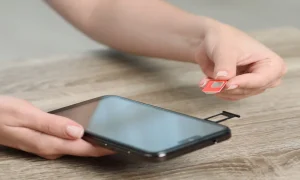
Method 3: Look at the SIM Tray
On most iPhone models, the IMEI is printed on the SIM tray.
- SIM removal tool or a straightened paperclip.
- Slightly press the small hole near the tray.
- Remove the tray, and find a small number that is printed on it.
This works while the phone is off, locked or if the screen is broken. Additionally, evaluates a second source for comparative analysis. For example, discrepancies between the number in your software and the number on your tray. However trays aren’t unique to a phone, so this in itself would not be conclusive proof of fraud, but is an indicator.
We should also note that this option will not be available on some iPhones sold in certain regions due to their lack of a physical SIM tray altogether.
Method 4: Check the Back of the Phone (Older Models)
For older iPhones — the original through several of its predecessors — you can find the IMEI in tiny text on the device’s back. Subsequent models shifted this data to the tray and the software program menu. For an older iPhone, flip it over and look close to the bottom for some tiny text.
Method 5: Check the Original Box
There is a label on the outside of the retail box with the serial number and IMEI. When buying a phone, that is complete in box, this is a good point of reference.
But all that from the box so do not presume on a box alone! For us boxes are easy to recycle, mismatch between the box and the phone contains more information than a match. If the two numbers does not match, ask why.
Method 6: Use Your Apple Account or a Computer
If you cannot get to the phone, you still have options.
- Apple Account: Sign in at account.apple.com on a browser, open the Devices section, and select your iPhone. The IMEI and serial number are listed there for devices signed in with your Apple Account.
- Mac or PC: Connect the iPhone to a computer. On a Mac, open Finder, select the iPhone in the sidebar, and click the device details under its name to cycle through the information, including the IMEI. On a Windows PC with Apple Devices or iTunes, open the phone’s summary page.
- Proof of purchase: Receipts and carrier invoices often list the IMEI too.
These methods are especially helpful if you are the owner and the phone is lost, because the number is needed to file a report.
How to Check IMEI Number on iPhone Without Unlocking It
Sometimes you need the number from a locked phone, such as when you are buying a device that is still on the lock screen or helping a relative who forgot a passcode.
You have a few options:
- The SIM tray works without any passcode on models that have one.
- The Emergency Call screen works on many iPhones. Tap Emergency, then dial *#06#. On a number of devices, this displays the IMEI even from the lock screen.
- The original box or receipt is another passcode-free route.
- Your Apple Account can list the IMEI if the device is registered to you.
A word of caution when buying: if the seller cannot or will not unlock the phone so you can check Settings, treat that as a serious warning. A phone that is still tied to another person’s passcode or Apple Account may be impossible for you to use.
How to Run an IMEI Check iPhone Buyers Can Trust
Finding the number is step one. The real value comes from what you do with it. Here is a practical process that covers the important bases.
Step 1: Confirm the Number in Two Places
Compare the IMEI from *#06# with Settings, then with the SIM tray or the box. They should match. If they do not, pause the purchase and ask for an explanation.
Step 2: Check Apple’s Coverage Page
Apple offers a free tool at checkcoverage.apple.com. Enter the serial number or IMEI, solve the captcha, and submit. The page can show:
- Whether Apple recognises the device
- The model name
- Whether the device has an active warranty or coverage
- The purchase date validation status
If Apple’s tool says it cannot find the device, or the model it shows is not the model you are holding, you have a significant red flag.
Important: Apple’s page confirms coverage and identity. It does not tell you whether a phone is blacklisted or carrier locked. For those, you need the checks below.
Step 3: Check Blacklist Status
Use a reputable blacklist lookup, such as a carrier’s own tool or a recognised IMEI checking service. We cover this in detail in the stolen device section.
Step 4: Check Carrier Lock
Open Settings > General > About and look at the Carrier Lock line, or ask the seller’s carrier. More detail comes in the next sections.
Step 5: Check Activation Lock and Find My
This is the one that catches many buyers off guard. Details are in their own section further down.
Step 6: Record Everything
Take screenshots of the IMEI screen and the results, and save the listing and the conversation. If something goes wrong later, you will be glad you did.
How to Spot a Fake iPhone Using the IMEI
Counterfeits and heavily modified clones are a real issue in the used phone market. The IMEI helps you catch many of them, and a few extra checks help catch the rest.
Signs the IMEI Is Telling You Something Is Wrong
- The number is not 15 digits. A genuine IMEI has 15 digits.
- *#06# shows nothing or an odd result. Genuine iPhones display the IMEI immediately.
- *Settings and #06# disagree. Software should be consistent with itself.
- Apple’s coverage page does not recognise it. Or it recognises it as a different model, colour, or storage size.
- The same IMEI appears on more than one listing. Scammers sometimes copy a valid IMEI onto multiple devices.
- The IMEI fails the check digit test. Free online IMEI validators can test whether the final digit is mathematically correct. A failed result means the number is invalid.
Other Quick Checks That Support the IMEI Check
The IMEI is strong evidence, but it is best used alongside a short physical inspection.
- Software: A real iPhone runs iOS. If the interface looks like a skinned Android phone, with a different settings layout or apps that behave oddly, walk away.
- Build quality: Look for uneven gaps, wobbly buttons, or poorly printed text on the back.
- Ports and speakers: Check that they match the model. Compare against Apple’s official photos of that model.
- Camera and sensors: Test every camera, the flashlight, Face ID or Touch ID, and the screen’s touch response.
- Weight and feel: Clones are often lighter or heavier than they should be.
- Price: If a recent flagship costs a fraction of normal market value, you are probably not getting a bargain.
No single sign is proof. Several together, though, make a strong case.
What About Refurbished or Repaired Phones?
Not every unusual result means fraud. A refurbished iPhone may have a replacement battery, screen, or housing, and that can be perfectly fine when it is disclosed and priced fairly. Apple’s own replacement devices also have different serial and model numbers on purpose.
The difference is honesty. If a seller tells you the truth about repairs, you can decide for yourself. If the seller hides it, that is the real problem.
How to Check Whether an iPhone Is Stolen or Blacklisted
This is the check that can save you the most money. A blacklisted phone can be blocked from cellular service, which turns a useful device into an expensive iPod.
What Does “Blacklisted” Mean?
When a phone is reported lost or stolen, or when the owner stops paying a financed device, the carrier can add its IMEI to a blocklist. Many countries and carriers share these lists, so the phone may stop working across multiple networks.
How to Check
- Get the IMEI using any method above.
- Use a trusted blacklist checker. Options include your own carrier’s device check tool, national databases where they exist, and recognised commercial services that query industry data. In the United States, for example, the CTIA runs a stolen phone checker. In many other regions, the GSMA’s device check service or national regulators provide similar lookups.
- Read the result carefully. Look for terms like clean, lost, stolen, blocked, or unpaid balance.
- Be cautious with unknown websites. Never enter your Apple ID, passcode, or payment details into a site that is only supposed to need an IMEI. A legitimate IMEI lookup does not need any of that.
Important Limits to Understand
- A clean result today does not guarantee a clean result next week. If the owner reports the phone lost after you buy it, it can still be blocked.
- Lists differ by country. A phone that is fine in one place may be restricted in another.
- Financed phones can be blocked for non-payment even when they were not stolen. Ask the seller to confirm that the device is fully paid off.
Smart Ways to Reduce Risk
- Buy from sellers who offer a written receipt and a return window.
- Prefer meeting at a carrier store or a busy public place, where you can check the phone on the spot.
- Ask for the original proof of purchase.
- If the price feels wrong, trust that feeling.
How to Check Whether an iPhone Is Locked to a Carrier
A carrier-locked iPhone works only with the network that sold it, usually until a contract or payment plan ends. An unlocked iPhone works with compatible SIM cards from different carriers.
Method 1: Check Settings
On recent versions of iOS:
- Go to Settings > General > About.
- Scroll to Carrier Lock.
- If it says No SIM restrictions, the phone is unlocked. If it shows a restriction, the phone is locked.
This is the easiest check, though the exact wording and availability can vary by iOS version and model.
Method 2: The Second SIM Test
If you are physically with the phone:
- Ask to insert a SIM card from a different carrier. Bring your own if you can.
- Restart the phone if needed.
- See whether it connects and lets you call or use data.
If you see a message such as “SIM Not Supported” or a prompt to enter an unlock code, the phone is locked. This is the most reliable real-world test.
Method 3: Ask the Carrier
Your original carrier can confirm lock status and tell you whether the device is eligible for unlocking. Many carriers have an online tool or a support line, and they will typically ask for the IMEI.
Why It Matters
A locked phone can limit your choice of plans, make travel more expensive, and lower resale value. Apple notes that unlocking is generally done through the carrier, so if a phone is locked, you will need to go through them. Do not pay a stranger for a mysterious unlock service. That is a common scam.
Activation Lock: The Check Everyone Forgets
An IMEI check will not tell you whether a phone is still tied to someone’s Apple Account, but this single issue can make an iPhone unusable for you.
Activation Lock is a security feature that turns on when Find My iPhone is enabled. After a reset, the phone asks for the original Apple Account and password before it can be set up again. If the seller cannot provide those, you are stuck.
How to Check Safely Before You Buy
- Request the seller to turn off Find My and sign out of their Apple Account in front of you.
- Tell them to go into Settings > General > Transfer or Reset iPhone and then erase everything.
- It should go to the Hello on-screen setup without asking for anyones Apple Account after the reset.
- You can visit Apple’s Activation Lock status page on iCloud, where you fill in either the IMEI or serial number.
Never buy an iPhone unless the seller unlocks it right away if you see an Activation Lock screen. No promises of “I’ll send you the password later”
Dual SIM and eSIM iPhones: Why You May See Two IMEIs
Most modern iPhones support utilizing two lines at the same time, either with a physical SIM plus an eSIM or, for some models with two eSIMs. Where we need an identifier for each line, hence the Phone needs to show IMEI and IMEI2.
For such a device, even upon doing so and getting the IMEI and MEID returned when you dial *#06#, you might also see the above alongside an EID identifying your eSIM hardware.
Here is what to remember:
- Both IMEIs are on different physical phones.
- Before testing the second type, it is better to test first with the main IMEI when checking blacklist or carrier status.
- In many markets, newer iPhones are eSIM-only and don’t have a SIM tray at all. That is a standard behaviour for these versions.
- It is not the IMEI — most lookup tools will reject it as a valid identifier for your device.
Whenever a model that was expected to be dual SIM shows only one number or vice versa, it means carefully check the details of the model again. This may be simply a local variant, but it can also indicate that something is wrong.
IMEI Check Red Flags Every Buyer Should Know
this as a quick scan. The first question here is about one red flag. Three or four warrants a dignified walk into the darkness.
- The seller says the IMEI will be shown, or “I do not know where it is.”
- Does not match IMEI in Settings, tray or box.
- The vendor requests that you pay first, after which they will meet with you.
- Filled with listing photos that obscure the About screen or the back of the phone.
- The phone is locked with a code, and the seller cannot unlock it.
- That pricing is well below the typical market value for that particular model.
- The seller encourages you to do it quickly.
- You can’t see the Carrier Lock or Find My status with this phone.
- That’s when Apple’s coverage page either fails to show any info at all, or tells you it’s a different model.
- When you demand for IMEI check, the seller gets defensive.
If you are an honest seller then these checked buyers understand and these guys simply want to get it checked. The people who resist it — kind of always tell you something, without a word.
Can You Change or Hide an IMEI?
Why is it illegal to change an IMEI on my phone in many countries? How Clean identities are given to stolen devices. On iPhones it is mostly also not reliable as the number is connected to a hardware.
The bottom line for you, the buyer: avoid any phone sold with a promise like “I can change IMEI.” A legal and a financial risk, but later the mobile can nevertheless be tracked or blocked.
As a rule, make your IMEI confidential to people you don’t know but communicate with carriers, give it to Apple and for police in the event of a loss. Someone who just wants to “check your phone” doesn’t need your passcode / Apple Account login.
A Simple Pre-Purchase Checklist
Write this down before you go to a seller.
- Approach them only in a public, safe place—A store or well-lit location when possible.
- After dialing *#06#, screenshot the IMEI.
- Go to Settings > General > About → Check the IMEI, model and storage.
- Match IMEI with SIM tray & if available Box.
- Apple has an affiliate relationship with ExpressVPN and TechBargains.
- Blacklist Check Use a trusted tool to perform a blacklist check.
- Look at the Carrier Lock line or try with another SIM.
- Make sure Find My is disabled and signed out from the seller’s Apple Account.
- Test camera, speakers, mic, buttons, charging port, Face ID or Touch ID and Wi-Fi.
- Now check the state of your battery Settings > Battery.
- Request a sticker or receipt that has the IMEI
- Only pay when everything is double verified.
This may sound like a lot for one sentence, but it takes roughly 10 minutes once you’ve done it before.
Frequently Asked Questions
Q: How do you check IMEI on iPhone?
A: You have to navigate Settings -> About phone -> Status -> IMEI information on most Android devices, but there are easy ways of doing it too — press the right combination of buttons. The IMEI shows up right away. You can also access it through Settings > General > About and scroll down to view.
Q: How to check IMEI on iPhone if the screen is broken?
A: If your model has a SIM tray, check it to see if the SIM card comes out without much force; also check the original box or receipt, and if none of those work, log into your Apple Account on a browser (not on Safari) and click Devices. If it’s still responsive, you can also plug the telephone into a computer.
Q: How can I check iPhone IMEI without the phone?
A: Original packaging of the unit, purchase receipt, or your carrier account, Devices section in your Apple Account. These sources can display the IMEI even if you have no phone in your hand.
Q: How to check iPhone IMEI check results are real?
A: Check the number using multiple sources. Check that both IMEIs from Settings match with the SIM tray and box, verify via Apple’s coverage page, and check against a trusted blacklist checker. When it comes to similar information corroborated by all sources, the output is vastly more reliable.
Q: How to check IMEI number on iPhone for free?
A: Both dialing *#06# and looking at Settings are free. Apple’s free coverage page is another option. A good number of carriers also provide free eligibility and lock checks. While some in depth third-party reports do come at a cost, you should not have to pay for simply seeing your own number.
Is an IMEI check iPhone service safe to use?
In that case, it might be as long the service only requests for IMEI. No need to share your Apple Account password, passcode, or payment card information for a simple query. Stick to trusted name brands, your carrier, and official methods.
Can the IMEI tell me if an iPhone is stolen?
It can help. The IMEI blacklist lookup can tell whether your device has been reported lost or stolen in the databases that this tool checks against. It will not be able to catch everything, because a phone could simply be stolen and it does not have the option of reporting it yet.
Can the IMEI tell me whether an iPhone is carrier locked?
A carrier or a specialised lookup can usually inform you. Alternatively, for compatible iOS versions, make sure you look at the Carrier Lock line in Settings and test by inserting a SIM from another carrier.
Does every iPhone have an IMEI?
All cellular iPhone models have an IMEI. There are some models having two because they feature for example double line.
What should I do if my iPhone IMEI check shows a problem?
If you are buying, stop and ask the seller for an explanation or a refund. have already bought the phone, contact the seller, the platform where you bought it, and your payment provider. If the phone is yours and you think it is blocked incorrectly, contact your carrier with proof of purchase.
What should I do if my own iPhone is lost or stolen?
Use Find My to locate or lock it, report it to your carrier so they can suspend service or blacklist the IMEI, and file a police report with the IMEI included. Keep a record of the number somewhere safe, away from the phone itself.
Final Thoughts
The iPhone IMEI check is one of the easiest and smartest things that you can do before buying or selling or trading a phone. It is quicker than most people spend choosing a phone case, and protects you from the sort of problems that are difficult to remedy once they have occurred.
To recap the essentials:
- Use *#06# to find the IMEI quickly, and verify it in Settings > General > About.
- Compare it with the sim tray and box itself.
- You can check the device on Apple’s coverage page.
- Perform a blacklist check and a carrier lock check
- Check that Activation Lock is disabled.
- Say no to sellers who avoid the bill.
Now, the next time someone pitches you a listing for the “perfect” iPhone at a “great price,” you will know how to hit back. Look up the IMEI first, and let the numbers speak for themselves.
Read More: How to Unlock a Network Locked SIM Card on Any Phone