Introduction
Is your mobile phone running very slow? It’s going to get hung up on repeatedly? Or maybe you’re about to sell it and want all of your personal data safely erased? In almost every such case the most tried solution is the same, and that is re-establishing the factory.
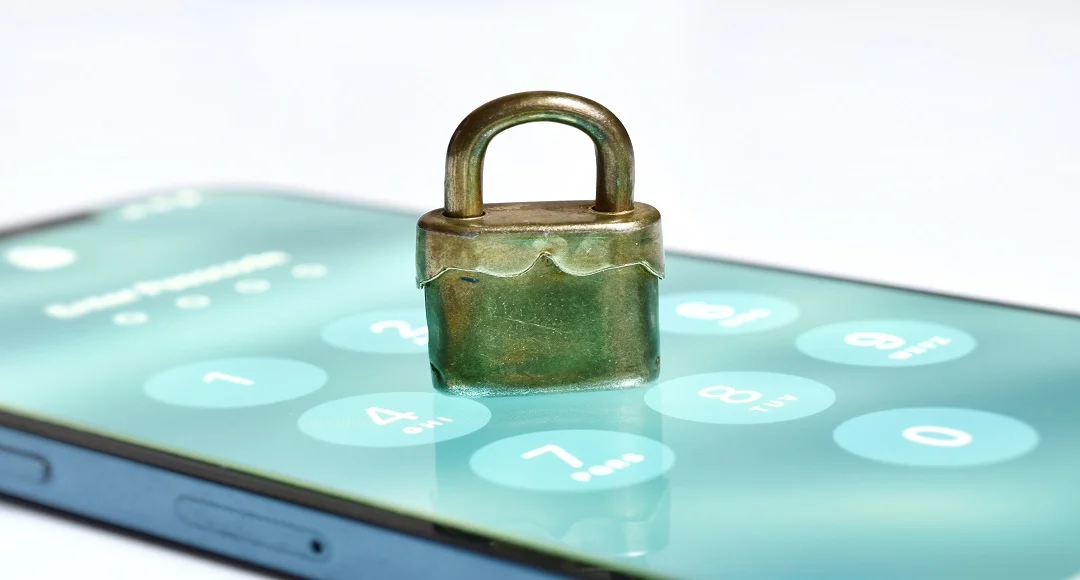
Many people find this question on Google how to factory reset samsung phone, but everyone’s situation is different. Someone remembers the password of the phone and can easily reset it through the settings. Someone else’s pattern or PIN is forgotten and the phone is completely locked. Some people want to reset their Samsung tablet or Samsung TV and they don’t know where to start.
In this complete guide, we will explain step-by-step how to factory reset Samsung devices for each of their types. You’ll learn how to reset a Samsung phone with and without a password, what the tablet method is, and how to restore a Samsung TV to its original state. We will also explain what to prepare for before the reset and what needs to be taken care of after.
This guide is written in simple language. So that even a normal user can follow every step without any technical support. So, let’s start.
Table of Contents
- Introduction
- What Is a Factory Reset?
- Things to Do Before You Factory Reset Your Samsung
- How to Factory Reset Samsung Phone From Settings (With Password)
- How to Factory Reset a Samsung Phone Without Password
- How to Factory Reset Samsung Tablet
- How to Factory Reset Samsung TV
- How to Factory Reset Samsung: Quick Comparison Table
- What Is FRP Lock After Factory Reset?
- Common Problems and Fixes
- What to Do After Factory Reset
- Frequently Asked Questions (FAQs)
- Conclusion
What Is a Factory Reset?
means a factory reset. Take your phone back to the state in which it first left the factory. During this process, all the apps, photos, videos, messages, contacts, accounts and settings stored in the phone are erased. The phone turns out to be brand new, i.e. as if you just opened the box.
It is also known as hard reset or master reset. In Samsung’s settings, it is displayed as Factory Data Reset.
It is important to understand something here. There is a difference between factory reset and normal reset. Restart simply shuts down the phone and restarts your data. A factory reset cleans up everything. So think carefully before taking this step.
When do you need to do a factory reset?
People usually use their phones for the following reasons:
- The phone has become very slow and is not recovering in normal ways.
- Apps are frequently crashing or the screen freezes.
- You’re about to sell, gift, or give your phone to someone else.
- A problem with the phone caused by a virus or a suspicious app.
- You’ve forgotten the password, PIN, or pattern and the phone is locked.
- The phone started to behave strangely after the software update.
- Storage is full and you want to start over.
Things to Do Before You Factory Reset Your Samsung
There are a few things to do before you start the reset. Once the data is erased, it is almost impossible to get it back, so do not ignore this part.
Back up your data
First of all, make a backup of your photos, videos, contacts and important files. There are several ways to back up a Samsung phone:
- Samsung Cloud: Go to Settings and open Accounts and Backup, then tap Back up data.
- Google Account Backup: Back up to the same accounts and backup via Google Drive.
- Smart Switch: This app of Samsung transfers your data to a computer or other phone.
- USB cable: Connect the phone to the computer.
Keep your account information.
You need to remember the email and password of your Google account and Samsung account. After the reset, the phone can ask for a login from these accounts. If you do not remember this information, you will not be able to use your own phone. We will discuss this in detail in the next section.
Keep the Battery Charged
The battery of the phone should be at least 50%, it is better to put the phone on the charger. If the phone is turned off during the reset, the software may be damaged.
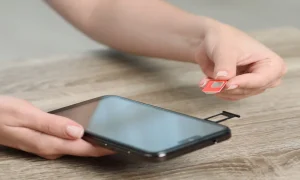
Remove the SD card and SIM card.
If you’re selling a phone, take out your memory card and SIM card. Usually a reset doesn’t erase the external memory card, but caution is better.
Take out the accounts themselves.
Remove your Google account and Samsung account by opening Accounts and Backup in Settings before selling the phone. This will allow the new owner to set up the phone without any hassle.
How to Factory Reset Samsung Phone From Settings (With Password)
If you remember your phone’s password, PIN or pattern, this is the easiest and safest way. This is the way most people solve the question of how to factory reset a Samsung phone. This method works on almost all Galaxy models, whether it’s the Galaxy S series, A series, M series or Note series.
Step-by-Step Method
Step 1: Open your phone’s Settings app. It is usually an icon with a gear mark.
Step 2: Scroll down and tap on General Management. In some older models, it is called Backup and Reset instead of General Management.
Step 3: Now click on the Reset option.
Step 4: Here you will see three options: Reset all settings, Reset network settings and Factory data reset. Choose the last one.
Step 5: A list of all the items that will be deleted will appear on the screen. Read it, and then press the Reset button.
Step 6: The phone will ask you for your PIN, pattern, or password. Enter them and press Continue.
Step 7: Finally, click on Delete All. It might be The phone will also ask you for the password of the Samsung account.
After this, the phone will automatically restart and the reset process will start. It usually takes 3 to 10 minutes. Don’t turn off your phone or press any buttons. When the phone is turned on again, you will see the same welcome screen that comes on the new phone.
What’s the difference between factory reset and factory reset?
Many users consider these two to be the same, although there is a big difference between them. Reset all settings only takes your settings such as Wi-Fi, Bluetooth, Display, and Sound to default, but your apps, photos, and files remain protected. The factory data reset deletes everything. If your problem is small, try Reset all settings first, there may not be a need for a factory reset.
How to Factory Reset a Samsung Phone Without Password
Let’s come now The question that is asked the most. What to do if you have forgotten the password, PIN or pattern and the phone is locked? Don’t worry, Samsung has several ways for this too. Below are three effective ways.
Important note: All of these methods erase your phone’s data. Just try it on your phone. It is illegal and unethical to open someone else’s phone in these ways without their permission.
Method 1: Recovery Mode
This method is currently working. When the phone is locked and the screen is not accessible. It doesn’t need the internet.
Step 1: Turn off the phone. If the phone won’t turn off, hold the power button down for about 10 to 15 seconds.
Step 2: Now press the button to take the phone into recovery mode. These models are different:
- Older models with the Home button: Press the Volume Up, Home, and Power buttons at the same time.
- For new models (without the home button), press the Volume Up and Side / Power buttons simultaneously.
- Some models: The phone has to be connected to the computer via a USB cable and press the Volume Up and Side buttons.
Step 3: When the Samsung logo appears, release the button. In a few seconds, the Android Recovery screen will appear.
Step 4: Touch doesn’t work on this screen. Go up and down from Volume Up and Volume Down buttons and select Wipe data / factory reset. Press the power button to make a selection.
Step 5: On the next screen, select Factory data reset and confirm with the Power button.
Step 6: After the completion of the process, select Reboot system now.
When the phone is restarted, it will be completely clean. But remember, if the phone already had a Google or Samsung account logged in, the phone will ask for confirmation of this account after the reset. This is called FRP lock and we will discuss this in detail later.
Method 2: Samsung Find My Mobile
If you already have a Samsung account logged into your phone and the Remote Controls option was turned on, you can reset it from any computer or other phone without touching the phone.
- Step 1: Open Samsung’s Find My Mobile website in the browser of a computer or any other phone.
- Step 2: Sign in with the same Samsung account that was used to lock the phone.
- Step 3: Select your device from the left side.
- Step 4: Click on Erase data and follow the on-screen instructions. The password must be re-entered if necessary.
Condition: The phone must be turned on and connected to the Internet. If the phone is turned off or there is no data, the order to erase the data will arrive at this time. When the phone is connected to the internet.
Method 3: Google Find My Device
If you have a Google account logged into your phone, Google’s Find My Device service (now called Find Hub) can also do this.
Step 1: Open Google’s Find My Device website on any other device.
Step 2: Log in using the same Google account that is present in the lock phone.
Step 3: Select your phone from the list.
Step 4: Select the Erase device (i.e. Factory reset device) option and confirm.
This method works as well. When the phone is connected to the internet.
When is the best time?
If the phone is completely closed or there is no internet, Recovery Mode is the best. If the phone is on and Wi-Fi or mobile data is running, Find My Mobile or Google Find My Device is easy. Because they do not have the complexity of pressing the button.
How to Factory Reset Samsung Tablet
The way to reset a Samsung tablet is almost the same as that of a Samsung phone, as both devices run on the same One UI software. If you were looking for how to factory reset samsung tablet, the methods below work on almost all models, including Galaxy Tab A, Tab S and Tab Active. The only difference is the size of the screen and the size of the buttons.
Samsung Tablet Reset From Settings
Step 1: Open the Settings app on your computer.
Step 2: Go to General Management and then select Reset.
Step 3: Tap on the factory data reset.
Step 4: Read the information on the screen.
Step 5: Enter your PIN or password and confirm by tapping on Delete all.
The tablet will reboot in a few minutes. The screen of the tablet is large and the battery is also high, so the reset can sometimes take a little longer than the phone. Don’t worry and wait.
Samsung Tablet Reset Without Password
If you have forgotten the password, use the Recovery Mode.
- Turn off the tablet completely.
- Press the Volume Up and Power buttons at the same time. (Tablets that have a home button.) They also have to press the home button.
- Release the button when the Samsung logo appears and wait for the recovery screen.
- Go to Wipe data / factory reset from the Volume buttons and select from the Power button.
- After confirming the installation, select Reboot system now.
In addition, you can also remotely erase your tablet’s data from Samsung Find My Mobile, provided that the tablet is already logged into a Samsung account and the tablet is connected to the Internet.
One important tip: the tablet often has a separate profile or Kids Mode for children. Resetting also removes all those profiles, so if there is anything important in it, make sure to take a backup first.
How to Factory Reset Samsung TV
Many people think that the reset is only for mobile, but smart TVs also store information about your Netflix, YouTube and other accounts. How to factory reset Samsung TV is very useful when you have to sell the TV, apps are not running or the TV is hanging repeatedly.
The most important thing is that the PIN is asked when resetting the Samsung TV. If you haven’t changed the PIN yourself, the default PIN is usually 0000.
Samsung Smart TV Reset (2020 and Newer Models)
- Step 1: Open the Home button on the TV remote.
- Step 2: Go to Settings and then select Settings.
- Step 3: Open General & Privacy.
- Step 4: Click on Reset.
- Step 5: The TV will ask you for a PIN. Enter the PIN, and if it doesn’t change, enter 0000.
- Step 6: Confirm the reset and press OK. The TV will turn off again.۔
Older Samsung TV Models (2019 and Earlier)
In older models, the menu layout is slightly different. Open Settings, go to Support, then select Self-Diagnosis and finally click on Reset. Confirm the reset after entering the PIN.
Samsung TV Reset Without Remote
Even if the remote is damaged or lost, there is no need to worry. There is a small control joystick or button on the bottom or back of the TV that can open the menu. You can also use the SmartThings mobile app as a remote, provided the TV and phone are connected to the same Wi-Fi. Open the remote by selecting TV in the app and reset it through the menu mentioned above.
Samsung TV Reset If You Forgot the PIN
If you have forgotten the PIN, try 0000. If it doesn’t work, pressing the Mute, 8, 2, 4 and Power buttons on the remote in sequence has been prevalent in some older models, but it doesn’t work on every model. The best way is to look in the TV’s manual or contact Samsung support, so that there is no damage to the TV.
What happens after the TV is turned on?
When the TV is reset, all apps, logins, Wi-Fi passwords and the channel list are erased. When the TV turns on again, you’ll need to reset the language, country, Wi-Fi, and account. If you watch channels from a cable or dish, Auto Tuning will also have to be done again.
How to Factory Reset Samsung: Quick Comparison Table
In the table below you can see at a single glance what is the main way to reset various Samsung devices.
| Device | Main Path | Password / PIN Needed? | Time Required |
|---|---|---|---|
| Samsung Phone | Settings > General management > Reset > Factory data reset | Yes (screen lock) | 3 to 10 minutes |
| Samsung Phone (Locked) | Recovery Mode > Wipe data/factory reset | No | 5 to 15 minutes |
| Samsung Tablet | Settings > General management > Reset > Factory data reset | Yes (screen lock) | 5 to 12 minutes |
| Samsung Smart TV (New) | Settings > All Settings > General & Privacy > Reset | Yes (TV PIN, default 0000) | 2 to 5 minutes |
| Samsung Smart TV (Old) | Settings > Support > Self Diagnosis > Reset | Yes (TV PIN, default 0000) | 2 to 5 minutes |
| Any Samsung Device | Find My Mobile > Erase data | Samsung account login | Depends on internet |
This table also tells you how to factory reset samsung not one way, but there are different ways according to your device and your situation.
What Is FRP Lock After Factory Reset?
The meaning of FRP. Factory Reset Protection. This is a security feature of Android that protects the stolen phone from being used in the wrong hands. When a Google account is logged into the phone and someone resets it without permission, the phone asks for the email and password of the same Google account when it is turned on.
Many users have this problem. They reset the phone and then can’t use the phone because they can’t remember the account. Remember this:
- Remember your Google account and password.
- If the phone is to be sold, remove the accounts first so that the buyer does not face a lock.
- If you’ve forgotten the password, use Google’s account recovery method to reset it.
- You may have to wait a few hours after the reset, if the password was recently changed.
Beware of tools and videos that bypass the FRP lock. Most of them are the source of viruses and data theft. If you are the original owner of the phone and the account is not accessible, go to the Samsung Service Center with the purchase receipt and box.
Common Problems and Fixes
Problems can sometimes occur during or after a factory reset. Below are the most common problems and their solutions.
| Problem | Why It Happens | What to Do |
|---|---|---|
| Reset option is greyed out | Device admin or parental control is on | Remove device admin apps or ask the admin |
| Phone stuck on Samsung logo | Interrupted reset or software glitch | Force restart with Volume Down + Power for 10 seconds |
| Recovery Mode not opening | Wrong button combination | Check the correct combo for your model and try again |
| Asks for Google account | FRP lock is active | Log in with the original Google account |
| Reset taking too long | Large data or low battery | Keep it charging and wait at least 20 minutes |
| Touch not working in Recovery | Normal behavior | Use Volume and Power buttons only |
What if the phone slows down after the reset?
If the phone is turned off due to the battery running out during the reset, put the phone on the charger and wait 15 to 20 minutes. Go back to the factory / data recovery mode. If this also does not work, the phone’s emergency software recovery can be tried from the computer through the Samsung Smart Switch software.
What if the phone slows down after the reset?
If the phone is running slow even after the factory reset, it may be due to a hardware problem such as bad storage or battery. In such a case, check the software update and refer to the service center if the problem persists.
What to Do After Factory Reset
It is equally important to set up the phone properly after it is reset. Keep these things in mind:
- Complete the setup screen: Enter the language, country, Wi-Fi, and your Google account.
- Restore data: When the option to restore data from a backup comes up, select Samsung Cloud or Google Backup.
- Software Update: Download the latest version of the software from the Settings.
- Install only the necessary apps: Instead of restoring all the data at once, install only the necessary apps so that the phone remains light.
- Re-install screen lock: Set the PIN or fingerprint and take a note in a safe place.
- Turn on Find My Mobile: so that you can find or lock the phone in case it is lost.
Frequently Asked Questions (FAQs)
Q: how to factory reset samsung phone.
A: To reset the Samsung phone, open Settings, go to General Management, tap on Reset and select Factory data reset and press Delete all. Make sure to back up your data before resetting as all the information is lost after this process. If you don’t remember the password, use the Recovery Mode.
Q: how to factory reset samsung tablet.
A: The same goes for the Samsung tablet: Settings, then General Management, then Reset and finally Factory Data Reset. If the tablet is locked, turn it off, press the Volume Up and Power buttons, go into Recovery Mode, and select Wipe data / factory reset.
Q: How to factory reset samsung tv.
A: Go to Settings > All Settings > General & Privacy > Reset. Older models have a way to go to Settings > Support > Self Diagnosis > Reset. The default PIN is usually 0000. If you don’t have a remote, use the SmartThings app or the control button on the TV.
Q: How to factory reset samsung.
A: The reset method of each Samsung device is slightly different. In the phone and tablet, Reset is found within General Management, while in the TV in the menu of General & Privacy or Support. In each case, make a backup first and remember your account information so that the FRP lock problem does not occur.
Q: How to factory reset a samsung phone.
A: If your phone is running, reset from Settings, and if it’s locked or doesn’t have access to the screen, turn it off and open Recovery Mode via Volume Up and Side / Power buttons. There, confirm with the Power button by selecting Wipe data / factory reset and finally press Reboot system now. You can also use Find My Mobile.
Q: Does a factory reset erase all data forever?
A: Usually yes, the internal data of the phone is lost and it is very difficult to get it back. Therefore, it should not be reset without a backup. However, the data on the SD card is usually safe.
Q: Will the virus be eliminated?
A: Most common viruses and suspicious apps are eliminated with a factory reset. But the same infected file can come back again when restoring from a backup, so be careful when restoring a backup.
Q: The warranty expires after the reset.
A: No, factory reset does not affect the warranty. Samsung itself suggests this as a common troubleshooting step in its support.۔
Conclusion
Factory resetting a Samsung phone, tablet or TV isn’t as difficult as it seems, it’s just necessary to run in the right order. If you have a password, the easiest and safest way is to reset it from Settings. If you’ve forgotten your password, Recovery Mode or Find My Mobile can help you. Remember the Reset option and the default PIN 0000 in the menu for Samsung TV.
Finally, always remember three things: first backup, then save the account information, and finally reset. Use this method only for your personal device. I hope that this guide has been helpful to you. If you have any questions, ask in the comments, we will do our best to answer.
Read More: iPhone IMEI Check: Spot Fake, Stolen, or Locked Devices Instantly